








This guide will walk you through building a secure Todo application using React, Neon Auth, and the Neon Data API.
By the end of this tutorial, you’ll have a fully functional Todo app that allows users to sign up, log in, and manage their todos. Authentication is handled through Neon Auth, while secure data access is powered by the Neon Data API. The app does not require any backend server; all interactions happen directly between the React frontend and the Neon database.
This architecture keeps things simple yet secure, with all the complexities of authentication and data access managed by Neon.
- Identity managed in the database: User accounts and sessions are stored within the
neon_authschema. - Direct and secure data access: The React frontend communicates with the database through the Data API, eliminating the need for a backend.
- Row-Level Security (RLS) in action: Policies ensure that each user can only view and modify their own todos.
Prerequisites
Before you begin, ensure you have the following:
- Node.js: Version
18or later installed on your machine. You can download it from nodejs.org. - Neon account: A free Neon account. If you don't have one, sign up at Neon.
Create a Neon project with Neon Auth and Data API
You'll need to create a Neon project and enable both Neon Auth and the Data API.
-
Create a Neon project: Navigate to Neon Console to create a new Neon project. Give your project a name, such as
react-neon-todo. -
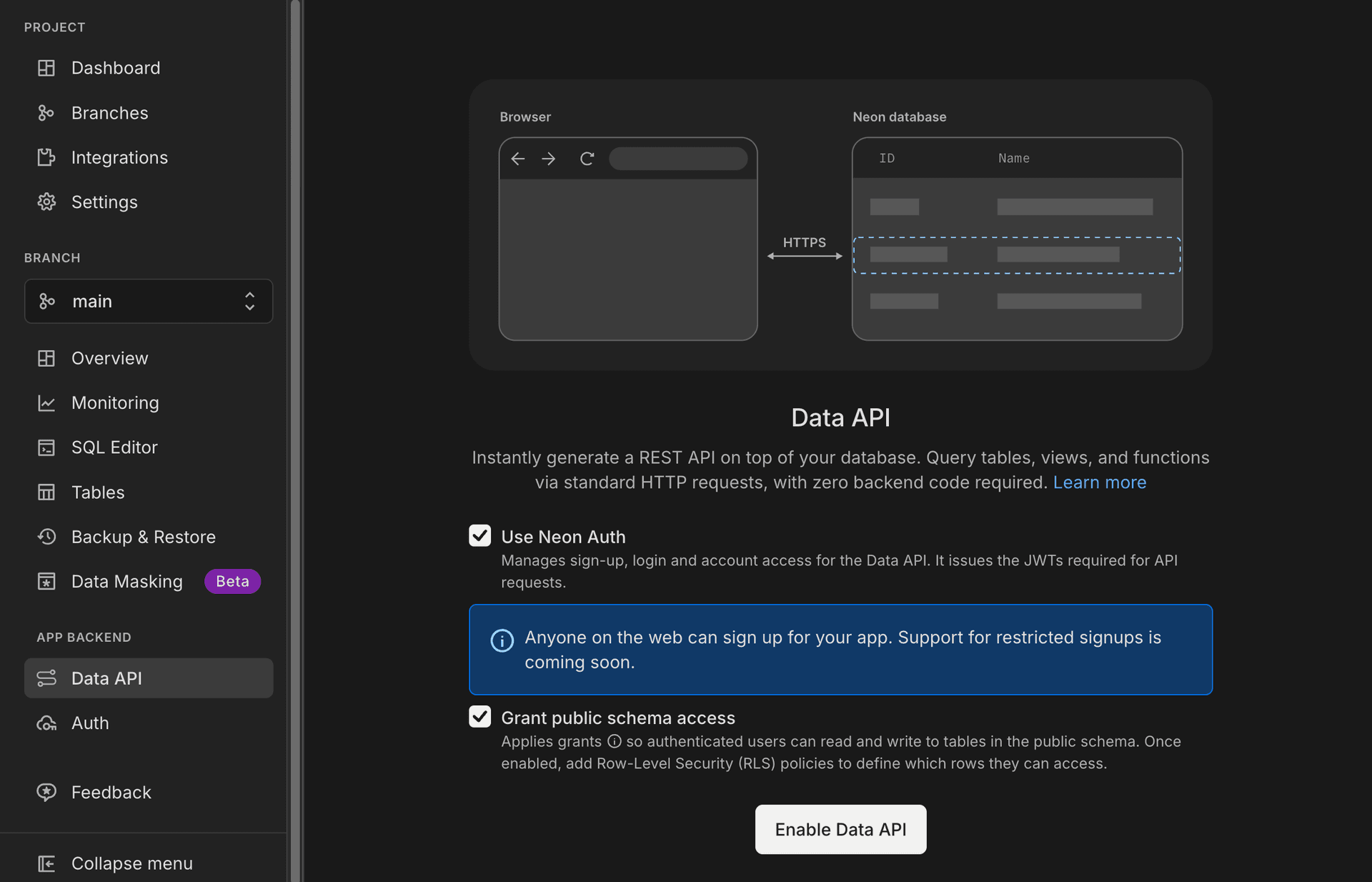
Enable Neon Data API with Neon Auth:
- In your project's dashboard, go to the Data API page from the sidebar.
- Ensure Use Neon Auth is selected.
- Ensure Grant public schema access is enabled.
- Finally, click on the Enable Data API button to activate the Data API with Neon Auth.
-
Copy your credentials:
-
Data API URL: Found on the Data API page (e.g.,
https://ep-xxx.neon.tech/neondb/rest/v1).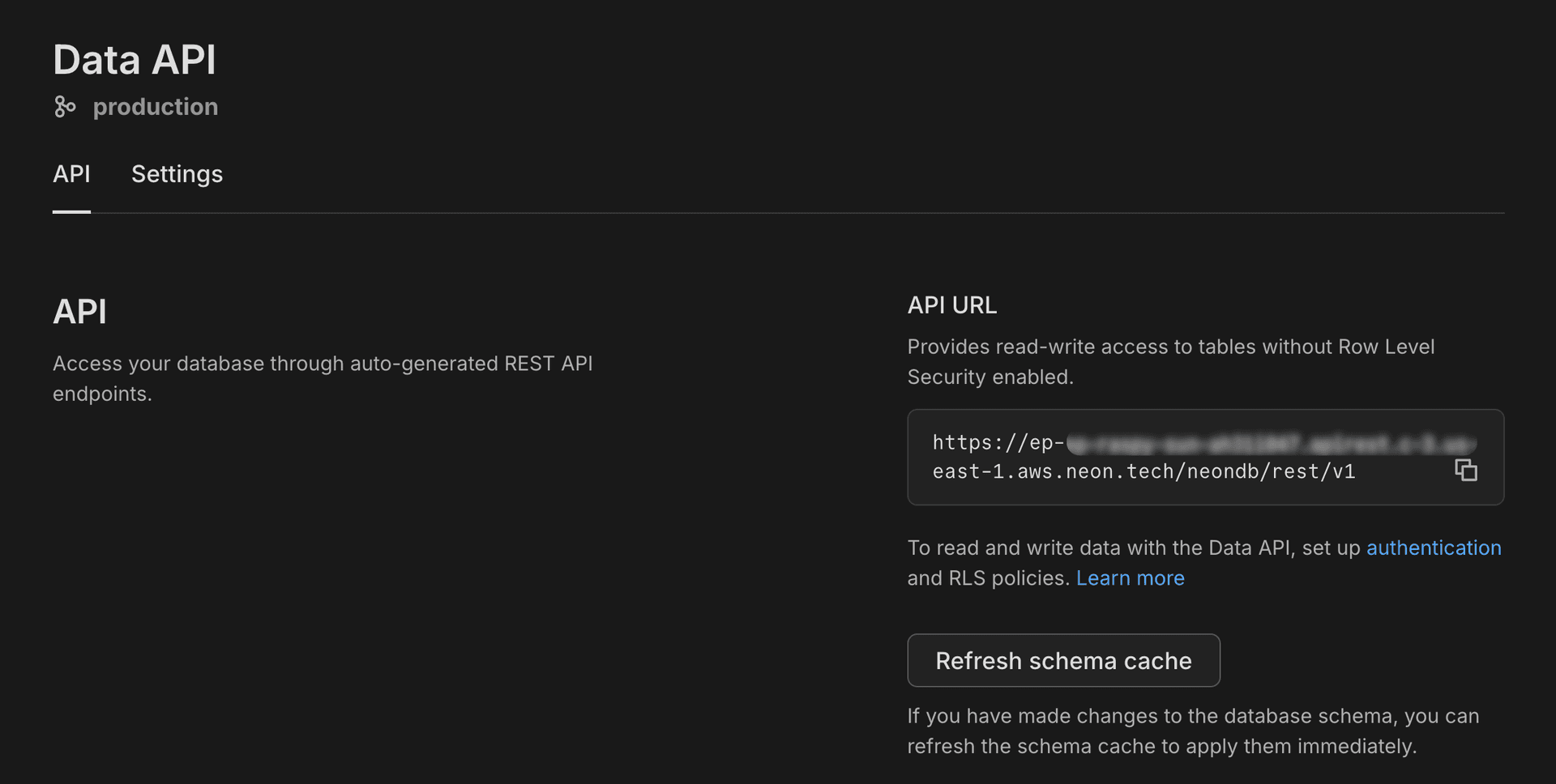
-
Auth URL: Found on the Auth page (e.g.,
https://ep-xxx.neon.tech/neondb/auth).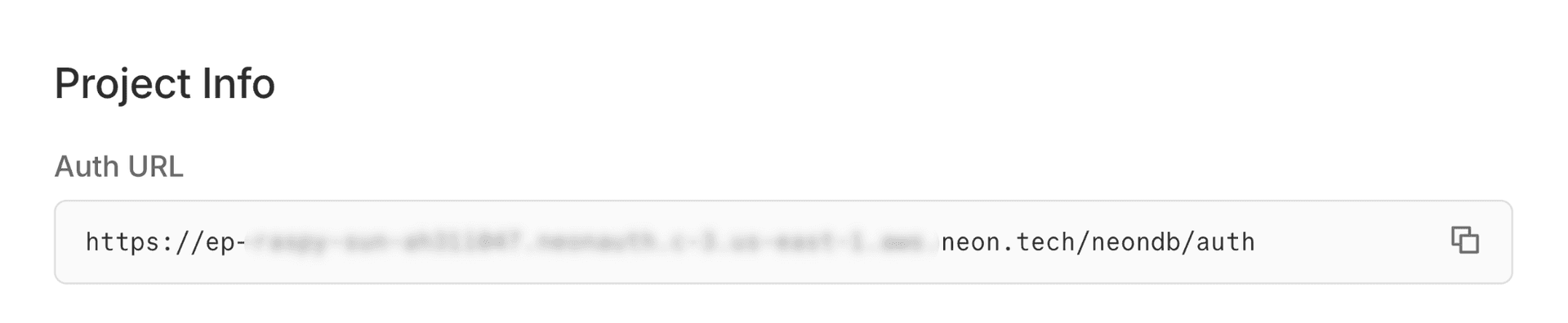
-
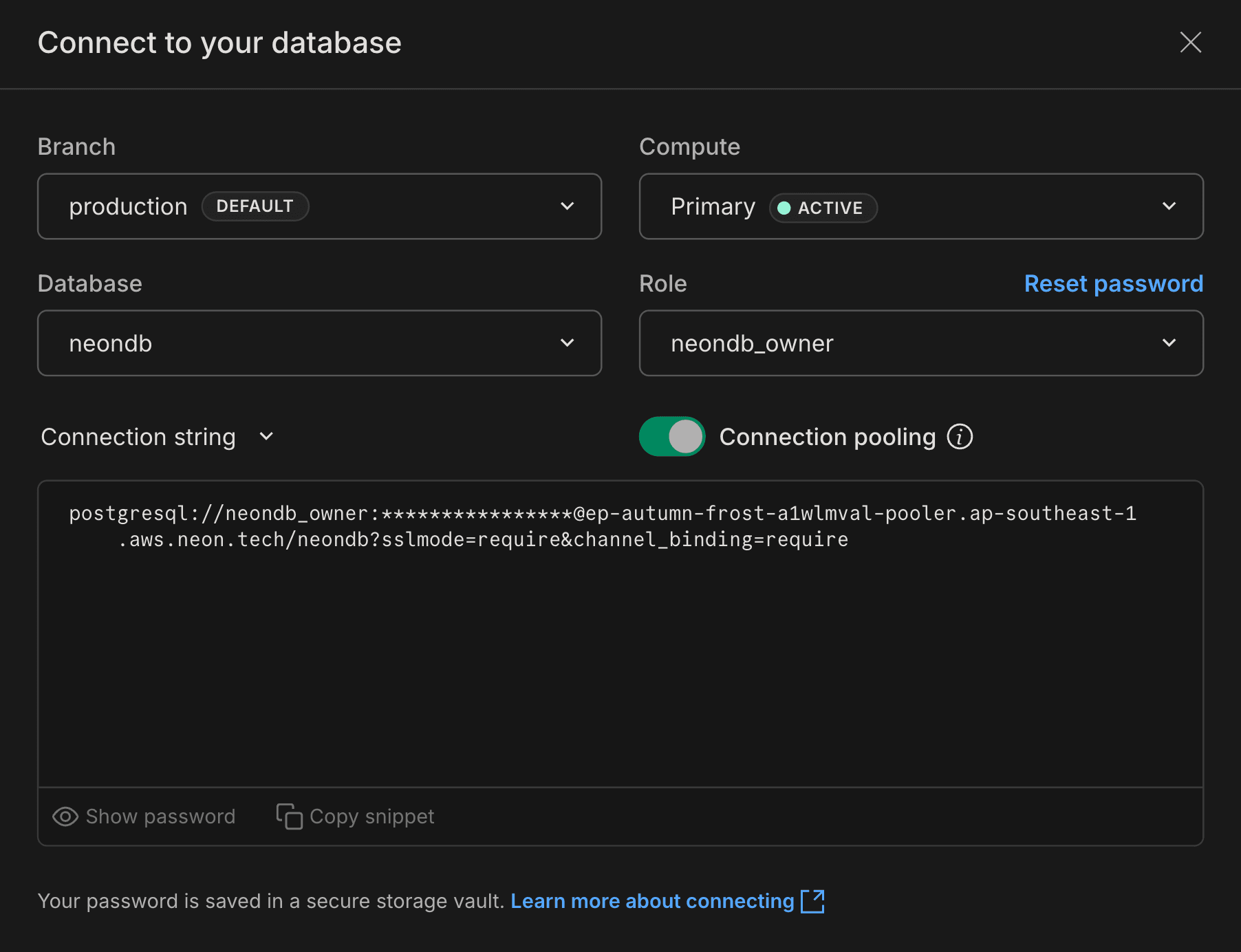
Database Connection String: Found on the Dashboard (select "Pooled connection").
The database connection string is used exclusively for Drizzle ORM migrations and should not be exposed in the frontend application.
-
-
Set up the React project
Create a new React project using Vite and install the required dependencies.
Initialize the app
npm create vite@latest react-neon-todo -- --template react-ts
cd react-neon-todo && npm install
When prompted:
- Select "No" for "Use rolldown-vite (Experimental)?"
- Select "No" for "Install with npm and start now?"
You should see output similar to:
$ npm create vite@latest react-neon-todo -- --template react-ts

> npx
> "create-vite" react-neon-todo --template react-ts

│
◇  Use rolldown-vite (Experimental)?:
│  No
│
◇  Install with npm and start now?
│  No
│
◇  Scaffolding project in /home/user/react-neon-todo...
│
└  Done.
Install dependencies
You will need the following packages for this project:
- Neon SDK:
@neondatabase/neon-jsfor interacting with Neon Auth and the Data API. - React Router:
react-routerfor routing between pages. - Drizzle ORM:
drizzle-ormanddrizzle-kitfor database schema management and migrations.
npm install @neondatabase/neon-js react-router drizzle-orm
npm install -D drizzle-kit dotenv
Setup Tailwind CSS
Install Tailwind CSS and the Vite plugin:
npm install tailwindcss @tailwindcss/viteAdd the
@tailwindcss/vite pluginto your Vite configuration (vite.config.ts):import { defineConfig } from 'vite'; import react from '@vitejs/plugin-react'; import tailwindcss from '@tailwindcss/vite'; export default defineConfig({ plugins: [ react(), tailwindcss(), ], });Configure environment variables
Create a
.envfile in the root of your project and add the credentials you copied in Step 1.# Database connection for Drizzle Migrations DATABASE_URL="postgresql://user:pass@ep-id.pooler.region.neon.tech/neondb?sslmode=require&channel_binding=require" # Public variables for the React App VITE_NEON_DATA_API_URL="https://ep-xxx.us-east-1.aws.neon.tech/neondb/rest/v1" VITE_NEON_AUTH_URL="https://ep-xxx.aws.neon.tech/neondb/auth"Set up Drizzle ORM
Why Drizzle ORM?
This guide uses Drizzle ORM to define Row-Level Security (RLS) policies declaratively in TypeScript, but it is not required. You can use any Postgres-compatible tool or raw SQL. If you prefer SQL, you can reference the scripts in the GitHub repository which are the equivalent of the Drizzle schema and migrations shown here.
Drizzle is used only for managing the database (migrations). The React application itself uses the Neon JS SDK to query data via the Data API.
Drizzle ORM helps manage your database schema and migrations. It will be used to define the schema for the
todostable and to interact with the Neon Auth tables. In addition, you will configure Row‑Level Security (RLS) policies to ensure that users can only access their own data.Create Drizzle config
Create a
drizzle.config.tsfile in the project root:import 'dotenv/config'; import type { Config } from 'drizzle-kit'; export default { schema: './src/db/schema.ts', out: './drizzle', dialect: 'postgresql', schemaFilter: ['public', 'neon_auth'], dbCredentials: { url: process.env.DATABASE_URL!, }, } satisfies Config;This config tells Drizzle Kit where to find your database schema and where to output migration files. The
schemaFilteris configured to look at both thepublicandneon_authschemas. Theneon_authschema is where Neon Auth stores its user data.Pull Neon Auth schema
A key feature of Neon Auth is the automatic creation and maintenance of the Better Auth tables within the
neon_authschema. Since these tables reside in your Neon database, you can work with them directly using SQL queries or any Postgres‑compatible ORM, including defining foreign key relationships.To integrate Neon Auth tables into your Drizzle ORM setup, you need to introspect the existing
neon_authschema and generate the corresponding Drizzle schema definitions.This step is crucial because it makes Drizzle aware of the Neon Auth tables, allowing you to create relationships between your application data (like the
todostable) and the user data managed by Neon Auth.-
Introspect the database: Run the Drizzle Kit
pullcommand to generate a schema file based on your existing Neon database tables.npx drizzle-kit pullThis command connects to your Neon database, inspects its structure, and creates
schema.tsandrelations.tsfiles inside a newdrizzlefolder. This file will contain the Drizzle schema definition for the Neon Auth tables. -
Organize schema files: Create a new directory
src/db. Move the generatedschema.tsandrelations.tsfiles from thedrizzledirectory tosrc/db/schema.tsandsrc/db/relations.tsrespectively.├ 📂 drizzle │ ├ 📂 meta │ ├ 📜 migration.sql │ ├ 📜 relations.ts ────────┐ │ └ 📜 schema.ts ───────────┤ ├ 📂 src │ │ ├ 📂 db │ │ │ ├ 📜 relations.ts <─────┤ │ │ └ 📜 schema.ts <────────┘ │ └ 📜 App.tsx └ … -
Add the Todos table to your schema
Open
src/db/schema.tsto view theneon_authtables that Drizzle generated from your existing Neon database schema. At the bottom of the file, append thetodostable definition along with the RLS policies shown below.You will also need to import the following additional utilities at the top of the file, as they are not included by default:
bigintfromdrizzle-orm/pg-coreto define theidcolumn of thetodostable.authenticatedRoleandcrudPolicyfromdrizzle-orm/neonto configure Row-Level Security (RLS).
Drizzle ORM includes built-in support for RLS policies. The
authenticatedRolerepresents the role assigned to authenticated users, whilecrudPolicyprovides a declarative way to define RLS policies. For more details, see the Simplify RLS with Drizzle guide.import { pgTable, pgSchema, uuid, text, timestamp, unique, boolean, bigint, } from 'drizzle-orm/pg-core'; import { sql } from 'drizzle-orm'; import { authenticatedRole, crudPolicy } from 'drizzle-orm/neon'; export const neonAuth = pgSchema('neon_auth'); // .. other Neon Auth table definitions .. export const userInNeonAuth = neonAuth.table( 'user', { id: uuid().defaultRandom().primaryKey().notNull(), name: text().notNull(), email: text().notNull(), emailVerified: boolean().notNull(), image: text(), createdAt: timestamp({ withTimezone: true, mode: 'string' }) .default(sql`CURRENT_TIMESTAMP`) .notNull(), updatedAt: timestamp({ withTimezone: true, mode: 'string' }) .default(sql`CURRENT_TIMESTAMP`) .notNull(), role: text(), banned: boolean(), banReason: text(), banExpires: timestamp({ withTimezone: true, mode: 'string' }), }, (table) => [unique('user_email_key').on(table.email)] ); export const todos = pgTable( 'todos', { id: bigint('id', { mode: 'number' }).primaryKey().generatedByDefaultAsIdentity().notNull(), text: text('text').notNull(), completed: boolean('completed').notNull().default(false), user_id: uuid('user_id') .notNull() .references(() => userInNeonAuth.id), }, (table) => [ crudPolicy({ role: authenticatedRole, // Type casting user_id to text for comparison with auth.user_id() read: sql`(select auth.user_id() = ${table.user_id}::text)`, modify: sql`(select auth.user_id() = ${table.user_id}::text)`, }), ] ); export type Todo = typeof todos.$inferSelect;The
todostable contains the following columns:id,text,completed, anduser_id. It is linked to theuserInNeonAuth(user) table in theneon_authschema and uses thecrudPolicyfunction to define RLS policies.-
Foreign key reference
Thetodostable includes a foreign key to theusertable in theneon_authschema. -
RLS policy (
crudPolicy)
This policy ensures that each user can only read and modify their own todos. -
Authenticated User ID
Theauth.user_id()function retrieves the ID of the currently authenticated user. -
Access control enforcement
Theuser_idcolumn in thetodostable is compared against the value returned byauth.user_id()to enforce access control. -
Type casting
Theuser_idis cast totextto ensure compatibility between the UUID type in the table and the text type returned byauth.user_id().
Generate and apply migrations
Now, generate the SQL migration file to create the
todostable.npx drizzle-kit generateThis creates a new SQL file in the
drizzledirectory. Apply this migration to your Neon database by running:Issue with commented migrations
This is a known issue in Drizzle. If
drizzle-kit pullgenerated an initial migration file (e.g.,0000_...sql) wrapped in block comments (/* ... */),drizzle-kit migratemay fail with anunterminated /* commenterror.To resolve this, manually delete the contents of the
0000_...sqlfile or replace the block comments with line comments (--).npx drizzle-kit migrateYour
todostable now exists in your Neon database. You can verify this in the Tables section of your Neon project dashboard.Now that the database schema is set up, you can proceed to build the React application.
-
Configure Neon Auth and Data API
Initialize the Neon client
Create a file
src/neon.ts. This initializes the Neon client, which handles both Authentication and Data API queries. For React hooks support, you will use theBetterAuthReactAdapter.import { createClient } from '@neondatabase/neon-js'; import { BetterAuthReactAdapter } from '@neondatabase/neon-js/auth/react/adapters'; export const neon = createClient({ auth: { url: import.meta.env.VITE_NEON_AUTH_URL, adapter: BetterAuthReactAdapter(), }, dataApi: { url: import.meta.env.VITE_NEON_DATA_API_URL, }, });Application entry point
Update
src/main.tsxto wrap your app in theNeonAuthUIProviderandBrowserRouterto enable routing and authentication context.import { StrictMode } from 'react'; import { createRoot } from 'react-dom/client'; import { BrowserRouter } from 'react-router'; import { NeonAuthUIProvider } from '@neondatabase/neon-js/auth/react/ui'; import App from './App.tsx'; import { neon } from './neon.ts'; import './index.css'; createRoot(document.getElementById('root')!).render( <StrictMode> <NeonAuthUIProvider authClient={neon.auth} emailOTP social={{ providers: ['google'] }}> <BrowserRouter> <App /> </BrowserRouter> </NeonAuthUIProvider> </StrictMode> );Setting up OAuth providers
In this example, Google OAuth is enabled for social login using the shared credentials provided by Neon Auth. You can customize the setup by adding your own OAuth credentials in the Neon Auth settings. Additional providers such as GitHub, Vercel can also be configured.
For more details, see Set up OAuth.
Auth and Account Pages
Neon Auth provides pre‑built UI components for handling the complete flow of authentication, including Sign In, Sign Up, and Account management.
As outlined in the Neon Auth React UI guide, you can use the
AuthViewandAccountViewcomponents to quickly set up these pages.Create
src/pages/Auth.tsx:import { AuthView } from '@neondatabase/neon-js/auth/react/ui'; import { useParams } from 'react-router'; export default function AuthPage() { const { path } = useParams(); return ( <div className="bg-gray-50 flex min-h-screen items-center justify-center p-8"> <AuthView pathname={path} /> </div> ); }Create
src/pages/Account.tsx:import { AccountView } from '@neondatabase/neon-js/auth/react/ui'; import { useParams } from 'react-router'; export default function AccountPage() { const { path } = useParams(); return ( <div className="bg-gray-50 flex min-h-screen items-center justify-center p-8"> <AccountView pathname={path} /> </div> ); }Update CSS
Update
src/index.cssto include the Neon Auth Tailwind styles and set the minimal global styles.@import 'tailwindcss'; @import '@neondatabase/neon-js/ui/tailwind'; :root { font-family: system-ui, sans-serif; line-height: 1.5; font-weight: 400; color: #0f172a; background-color: #f3f4f6; text-rendering: optimizeLegibility; -webkit-font-smoothing: antialiased; -moz-osx-font-smoothing: grayscale; } body { margin: 0; min-height: 100vh; background: #000000; }Build the application
Create the main components and pages for the Todo application:
- Header with user profile and sign out
- Todo application logic using the Neon Data API
Header Component
Create
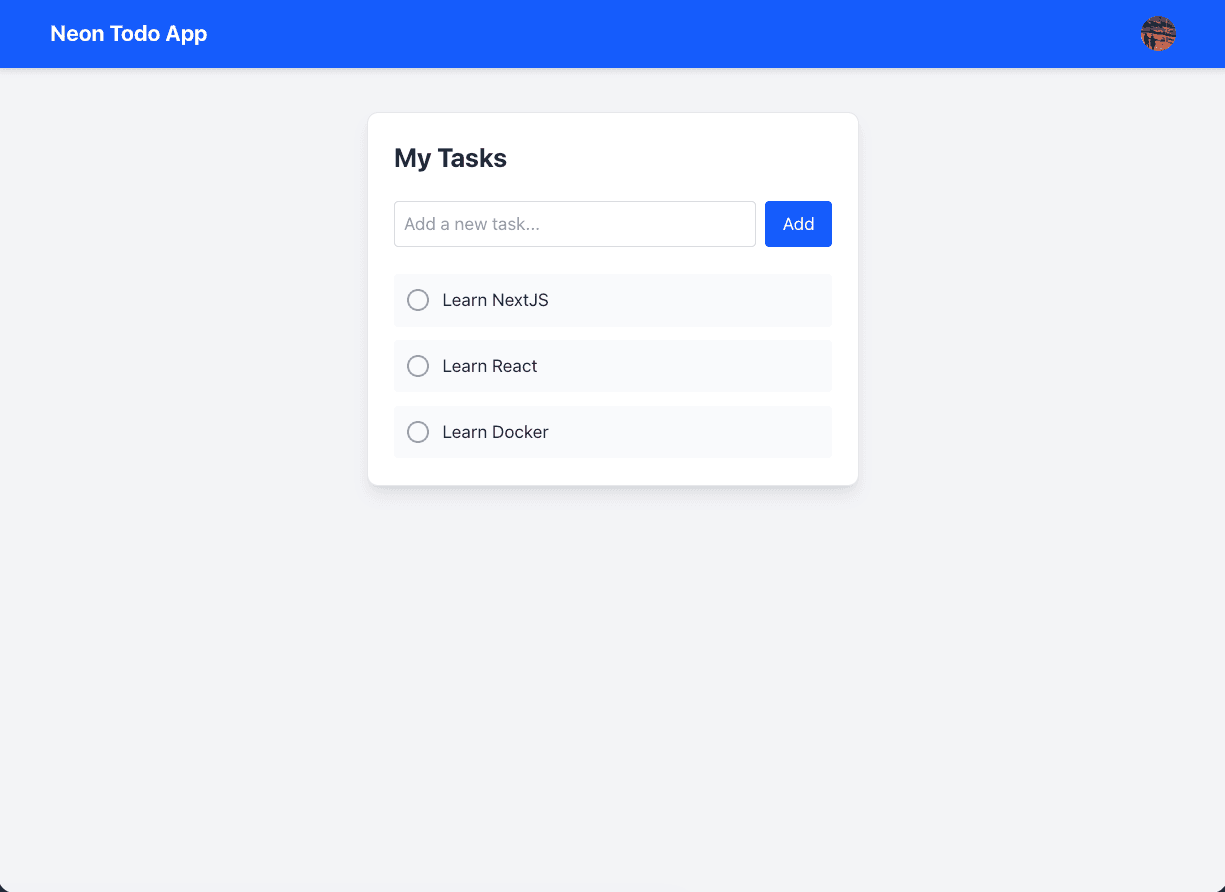
src/components/Header.tsx. You'll use theUserButtoncomponent from Neon Auth UI components to display the user's profile and sign-out option.import { UserButton } from '@neondatabase/neon-js/auth/react'; export default function Header() { return ( <header className="bg-blue-600 p-4 text-white shadow-md"> <div className="container mx-auto flex items-center justify-between"> <h1 className="text-xl font-bold">Neon Todo App</h1> <UserButton size={'icon'} /> </div> </header> ); }The component creates a simple header with the app title on the left and the
UserButtonon the right, allowing users to access their account options.Todo application component
Create
src/pages/TodoApp.tsx. This component manages the todo list, allowing users to add, toggle, and delete tasks. It uses the Neon Data API to interact with thetodostable, leveraging RLS policies to ensure secure data access.Note
Because RLS policies are defined in the schema, you don’t need to manually filter by
user_idwhen selecting data; the database automatically applies filtering based on the authenticated user’s token. For performance and indexing efficiency, however, it’s still recommended to includeuser_idin your queries.import { useState, useEffect, type FormEvent } from 'react'; import { neon } from '../neon'; import type { Todo } from '../db/schema'; export default function TodoApp() { const [todos, setTodos] = useState<Todo[]>([]); const [inputValue, setInputValue] = useState(''); // Get the current session const { data } = neon.auth.useSession(); useEffect(() => { if (data?.user) { const fetchTodos = async () => { // Query the Data API // RLS automatically ensures that only the current user's todos are returned const { data: todosData, error } = await neon .from('todos') .select('*') .order('id', { ascending: false }); if (error) { console.error('Error fetching todos:', error); } else { setTodos(todosData || []); } }; fetchTodos(); } }, [data]); const handleAddTodo = async (e: FormEvent) => { if (!data?.user) return; e.preventDefault(); if (!inputValue.trim()) return; // Optimistic UI update const tempId = Date.now(); const newTodo = { id: tempId, text: inputValue, completed: false, user_id: data.user.id }; setTodos([newTodo, ...todos]); setInputValue(''); // Insert into Database const { data: insertedData } = await neon .from('todos') .insert({ text: newTodo.text, completed: newTodo.completed, user_id: data.user.id, }) .select() .single(); // Update with real ID from DB if (insertedData) { setTodos((prev) => prev.map((t) => (t.id === tempId ? insertedData : t))); } }; const toggleTodo = async (id: number) => { const todo = todos.find((t) => t.id === id); if (!todo) return; // Optimistic update setTodos(todos.map((t) => (t.id === id ? { ...t, completed: !t.completed } : t))); // Update in Database await neon.from('todos').update({ completed: !todo.completed }).eq('id', id); }; const deleteTodo = async (id: number) => { setTodos(todos.filter((t) => t.id !== id)); await neon.from('todos').delete().eq('id', id); }; return ( <div className="border-gray-200 mx-auto mt-10 max-w-md rounded-lg border bg-white p-6 shadow-lg"> <h2 className="text-gray-800 mb-6 text-2xl font-bold">My Tasks</h2> <form onSubmit={handleAddTodo} className="mb-6 flex gap-2"> <input type="text" value={inputValue} onChange={(e) => setInputValue(e.target.value)} placeholder="Add a new task..." className="border-gray-300 focus:ring-blue-500 flex-1 rounded border p-2 focus:outline-none focus:ring-2" /> <button type="submit" className="bg-blue-600 hover:bg-blue-700 rounded px-4 py-2 text-white transition" > Add </button> </form> <ul className="space-y-3"> {todos.length === 0 && <p className="text-gray-500 text-center italic">No tasks yet.</p>} {todos.map((todo) => ( <li key={todo.id} className="bg-gray-50 hover:bg-gray-100 group flex items-center justify-between rounded p-3 transition" > <div onClick={() => toggleTodo(todo.id)} className="flex cursor-pointer select-none items-center gap-3" > <div className={`flex h-5 w-5 items-center justify-center rounded-full border-2 ${todo.completed ? 'bg-green-500 border-green-500' : 'border-gray-400'}`} > {todo.completed && <span className="text-xs text-white">✓</span>} </div> <span className={todo.completed ? 'text-gray-400 line-through' : 'text-gray-800'}> {todo.text} </span> </div> <button onClick={() => deleteTodo(todo.id)} className="text-red-400 hover:text-red-600 opacity-0 transition group-hover:opacity-100" > Delete </button> </li> ))} </ul> </div> ); }Layout and Routing
Update
src/App.tsxto set up routing and layout for the application.import { Routes, Route } from 'react-router'; import Header from './components/Header'; import Account from './pages/Account'; import Auth from './pages/Auth'; import { RedirectToSignIn, SignedIn } from '@neondatabase/neon-js/auth/react/ui'; import TodoApp from './pages/TodoApp'; const Layout = () => { return ( <> <SignedIn> <div className="bg-gray-100 text-gray-900 min-h-screen font-sans"> <Header /> <TodoApp /> </div> </SignedIn> <RedirectToSignIn /> </> ); }; export default function App() { return ( <Routes> <Route path="/" element={<Layout />} /> <Route path="/auth/:path" element={<Auth />} /> <Route path="/account/:path" element={<Account />} /> </Routes> ); }The routing structure includes three main routes:
/- The main Todo application, protected by authentication./auth/:path- The authentication pages (Sign In, Sign Up, etc.)./account/:path- The account management pages.
The
<SignedIn>component ensures that only authenticated users can access the Todo application, while<RedirectToSignIn>redirects unauthenticated users to the Sign In page.This setup ensures that only authenticated users can access the Todo application, while unauthenticated users are redirected to the Sign In page.
Run the application
-
Start the development server:
npm run dev -
Open
http://localhost:5173. -
You will be redirected to the Sign In page.
-
Sign up with an email or use Google OAuth to create an account.
-
Once logged in, you will see the Todo application interface where you can add, toggle, and delete tasks.
-
Optional: Add end-to-end type safety
Neon JS SDK supports end-to-end type safety when interacting with the Data API. You can pull the database schema and generate TypeScript types for your tables. This allows you to have type-safe queries in your React application. This step is optional but recommended for better developer experience.
-
Generate types:
Run the following command to introspect your database and generate a
types.tsfile.export DATABASE_URL="your_connection_string" && \ npx @neondatabase/neon-js gen-types \ --db-url "$DATABASE_URL" \ --output src/types.tsReplace
your_connection_stringwith your actual Neon database connection string. -
Update the Neon client:
Modify
src/neon.tsto use the generated types. This tells the Neon SDK about your database structure.import { createClient } from '@neondatabase/neon-js'; import { BetterAuthReactAdapter } from '@neondatabase/neon-js/auth/react/adapters'; import type { Database } from './types'; export const neon = createClient<Database>({ auth: { url: import.meta.env.VITE_NEON_AUTH_URL, adapter: BetterAuthReactAdapter(), }, dataApi: { url: import.meta.env.VITE_NEON_DATA_API_URL, }, });
Now, when you interact with the Data API using neon.from('todos').select('...'), update('...'), etc., you will have full type safety and autocompletion based on your database schema. Remember to pull the types again whenever you make schema changes.
Deploying the application
When you’re ready to deploy your React application, you can use any static site hosting service such as Vercel or Netlify. Ensure that your environment variables are correctly configured in the deployment settings.
Since this example relies on client‑side routing with React Router, you’ll also need to define rewrite rules.
For example, if you’re deploying to Vercel, add a vercel.json file to the root of your project with the following content:
{
  "$schema": "https://openapi.vercel.sh/vercel.json",
  "rewrites": [
    {
      "source": "/(.*)",
      "destination": "/"
    }
  ],
  "framework": "vite"
}
After deploying your application, add the production URLs to the Your trusted domains section in the Neon Auth settings to ensure authentication works correctly.
Conclusion
In this guide, you built a secure Todo application using React, Neon Auth, and the Neon Data API. You learned how to configure Neon Auth for user authentication, define your database schema with Drizzle ORM, and enforce Row‑Level Security (RLS) policies to safeguard user data.
With this foundation, you can create applications that require secure authentication and controlled data access - all without a dedicated backend server. To take your projects further, explore additional features of Neon Auth and the Data API.
Before deploying to production, be sure to review the Neon Auth production checklist.
Source code
The complete source code for this example is available on GitHub.
Resources
- Neon Auth Overview
- React with Neon Auth UI (UI Components)
- Use Neon Auth with React (API methods)
- Neon Auth & Data API TypeScript SDKs
- Getting started with Neon Data API
- Simplify RLS with Drizzle
Need help?
Join our Discord Server to ask questions or see what others are doing with Neon. For paid plan support options, see Support.
