








What you will learn:
How to connect from Kysely using different drivers
How to define TypeScript schemas for Kysely
How to run migrations and queries
Related resources
Kysely is a modern, type‑safe SQL query builder for TypeScript. Unlike traditional ORMs, it focuses on providing a flexible and intuitive API for building SQL queries while leveraging TypeScript's type system for safety and autocompletion. This guide walks you through connecting your application to a Neon Postgres database using Kysely.
To connect a TypeScript/Node.js project to Neon using Kysely, follow these steps:
Create a TypeScript/Node.js project
Create a new directory for your project and navigate into it:
mkdir my-kysely-neon-project
cd my-kysely-neon-project
Initialize a new Node.js project:
npm init -yInstall TypeScript and initialize a configuration file (Kysely requires TypeScript 4.6+):
npm install -D typescript tsx @types/node
npx tsc --init
Configure your
tsconfig.jsonfor type safety and module resolution. Ensure you have at least the following settings:{ "compilerOptions": { // ... other settings ... "target": "ES2022", "module": "NodeNext", "moduleResolution": "NodeNext", "strict": true, "allowImportingTsExtensions": true, "noEmit": true } }Configure your
package.jsonto use ES modules by updating or adding the following line:{ // ... other settings ... "type": "module" }Create a Neon project
If you do not have one already, create a Neon project.
- Navigate to the Projects page in the Neon Console.
- Click New Project.
- Specify your project settings and click Create Project.
Get your connection string
Find your database connection string by clicking the Connect button on your Project Dashboard to open the Connect to your database modal. Select a branch, a user, and the database you want to connect to. A connection string is constructed for you.
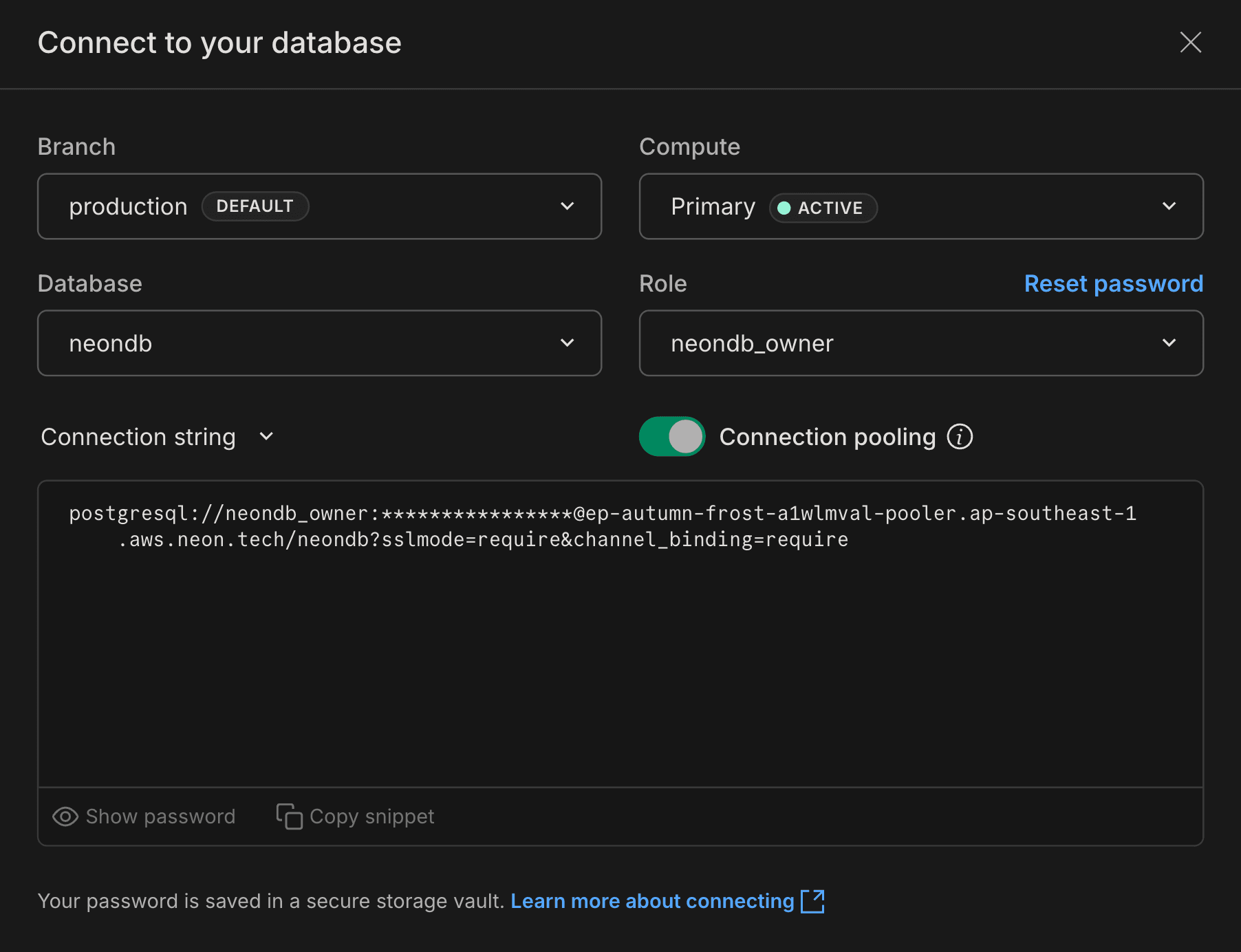
Create a
.envfile in your project's root directory and add the connection string to it. Your.envfile should look like this:DATABASE_URL="postgresql://[user]:[password]@[neon_hostname]/[dbname]?sslmode=require"Install Kysely and a driver
Install the Kysely core package and the necessary driver dependencies. Choose one of the following drivers based on your application's needs:
Use the Neon serverless HTTP driver for serverless/edge environments (e.g., Vercel Edge, Cloudflare Workers). This requires the
kysely-neondialect.Note
The Neon serverless driver over HTTP is stateless and does not support persistent connections or interactive transactions. If your application requires transactions, we recommend using the Neon WebSocket driver or
node-postgres.npm install kysely kysely-neon @neondatabase/serverless dotenvCreate a table (optional)
You can skip this step if you already have tables in your database.
Unlike many ORMs, Kysely does not automatically sync your TypeScript types with the database schema. Tables must exist before you query them.
Optionally, you can use Kysely’s migration helpers (
upanddown) to apply or revert schema changes. See Run a Migration below for details.Navigate to the SQL Editor in the Neon Console and run the following SQL command to create a
userstable:CREATE TABLE users ( id SERIAL PRIMARY KEY, name TEXT NOT NULL, email TEXT UNIQUE NOT NULL, created_at TIMESTAMP DEFAULT NOW() NOT NULL );Define the Database Schema
Kysely is TypeScript-first and requires you to define an interface that describes your database structure. This interface tells Kysely which tables and columns exist.
Create a file
src/types.ts:import type { Generated, Selectable, Insertable, Updateable } from 'kysely'; export interface Database { users: UsersTable; } export interface UsersTable { // Columns that are generated by the database should be marked // using the `Generated` type. id: Generated<number>; name: string; email: string; created_at: Generated<Date>; } // You can use these types in your application code export type User = Selectable<UsersTable>; export type NewUser = Insertable<UsersTable>; export type UserUpdate = Updateable<UsersTable>;Initialize the Kysely client
Create a file
src/db.tsto initialize and export your Kysely instance. The configuration depends on the driver you selected.When using the HTTP driver, use
NeonDialectfromkysely-neon.import 'dotenv/config'; import { Kysely } from 'kysely'; import { NeonDialect } from 'kysely-neon'; import { neon } from '@neondatabase/serverless'; import type { Database } from './types.ts'; export const db = new Kysely<Database>({ dialect: new NeonDialect({ neon: neon(process.env.DATABASE_URL!), }), });Run a Migration (optional)
You can skip this step if you do not intend to use Kysely for migrations.
Kysely manages migrations using TypeScript files. Create a migration to create the
userstable using Kysely's schema builder.-
Create a folder named
migrationsin your project's root directory:mkdir migrations -
Create a file
migrations/001_create_users.ts:import { Kysely, sql } from 'kysely'; export async function up(db: Kysely<any>): Promise<void> { await db.schema .createTable('users') .addColumn('id', 'serial', (col) => col.primaryKey()) .addColumn('name', 'text', (col) => col.notNull()) .addColumn('email', 'text', (col) => col.unique().notNull()) .addColumn('created_at', 'timestamp', (col) => col.defaultTo(sql`now()`).notNull()) .execute(); } export async function down(db: Kysely<any>): Promise<void> { await db.schema.dropTable('users').execute(); } -
Create a script to run the migration
src/migrate.ts.import * as path from 'path'; import { promises as fs } from 'fs'; import { fileURLToPath } from 'url'; import { Migrator, FileMigrationProvider } from 'kysely'; import { db } from './db.ts'; const __filename = fileURLToPath(import.meta.url); const __dirname = path.dirname(__filename); async function migrateToLatest() { const migrator = new Migrator({ db, provider: new FileMigrationProvider({ fs, path, migrationFolder: path.join(__dirname, '../migrations'), }), }); const { error, results } = await migrator.migrateToLatest(); results?.forEach((it) => { if (it.status === 'Success') { console.log(`migration "${it.migrationName}" was executed successfully`); } else if (it.status === 'Error') { console.error(`failed to execute migration "${it.migrationName}"`); } }); if (error) { console.error('failed to migrate'); console.error(error); process.exit(1); } await db.destroy(); } migrateToLatest(); -
Run the migration:
npx tsx src/migrate.ts
-
Query the database
Create a file
src/index.tsto interact with your database. The following example demonstrates how to perform standard CRUD operations (Create, Read, Update, Delete) using Kysely.import { db } from './db.ts'; async function main() { try { // 1. Insert (Create) const { id } = await db .insertInto('users') .values({ name: 'Neon User', email: `user-${Date.now()}@example.com`, }) .returning('id') .executeTakeFirstOrThrow(); console.log(`User created with ID: ${id}`); // 2. Select (Read) const users = await db.selectFrom('users').selectAll().execute(); console.log('All users:', users); // 3. Update const updateResult = await db .updateTable('users') .set({ name: 'Updated Neon User' }) .where('id', '=', id) .executeTakeFirst(); console.log(`User updated. Rows affected: ${updateResult.numUpdatedRows}`); // 4. Delete const deleteResult = await db.deleteFrom('users').where('id', '=', id).executeTakeFirst(); console.log(`User deleted. Rows affected: ${deleteResult.numDeletedRows}`); } catch (error) { console.error('Error querying the database:', error); } finally { // Close the connection await db.destroy(); } } main();Run the script using
tsx:npx tsx src/index.tsYou should see output indicating that the user was created and then fetched from the database.
$ npx tsx src/index.ts
User created with ID: 1
All users: [
  {
    id: 1,
    name: 'Neon User',
    email: 'user-1765528647146@example.com',
    created_at: 2025-12-12T08:37:27.456Z
  }
]
User updated. Rows affected: 1
User deleted. Rows affected: 1
For more advanced use cases, such as complex filters, joins, transactions, and subqueries, please refer to the Kysely documentation.