








What you will learn:
Related topics
About this integration
Vercel-Managed Integration (also known as Neon Postgres Native Integration) lets you add a Neon Postgres database to your Vercel project with billing handled entirely inside Vercel. Installing it:
- Creates a Neon account + project for you (if you don't already have one)
- For existing Neon users, adds a new organization named
Vercel: <team-name>to your account - Injects the required database environment variables (
DATABASE_URL, etc.) into your Vercel project - Optionally creates a dedicated database branch for every Preview Deployment so you can test schema changes safely
Who should use this path?
Choose the Vercel-Managed Integration if you do not already have a Neon account or you prefer to consolidate payment for Neon inside your Vercel invoice.
Installation walkthrough
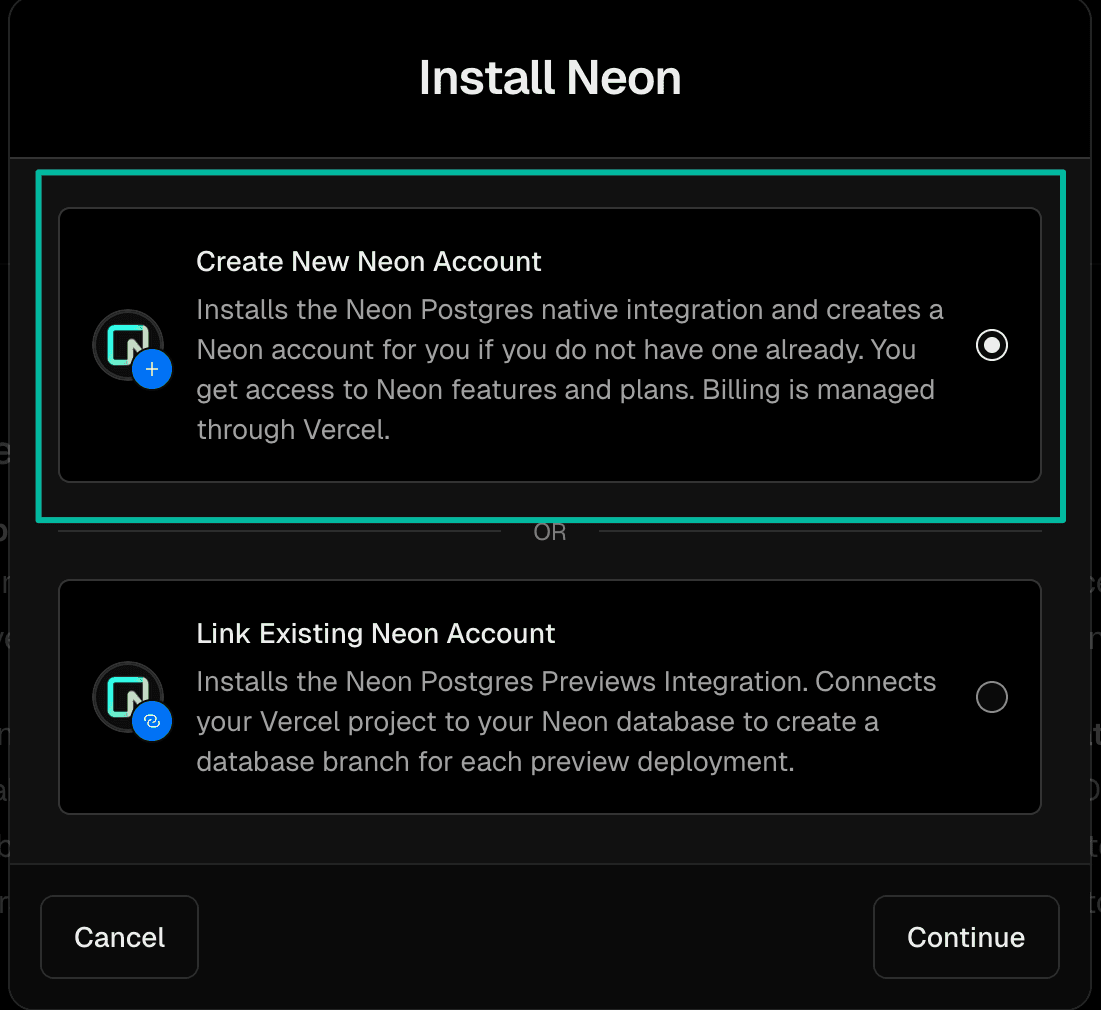
Open Neon integration
Open the Neon integration on the Vercel Marketplace and click Install.
Connecting the database to a Vercel project
-
In Storage →
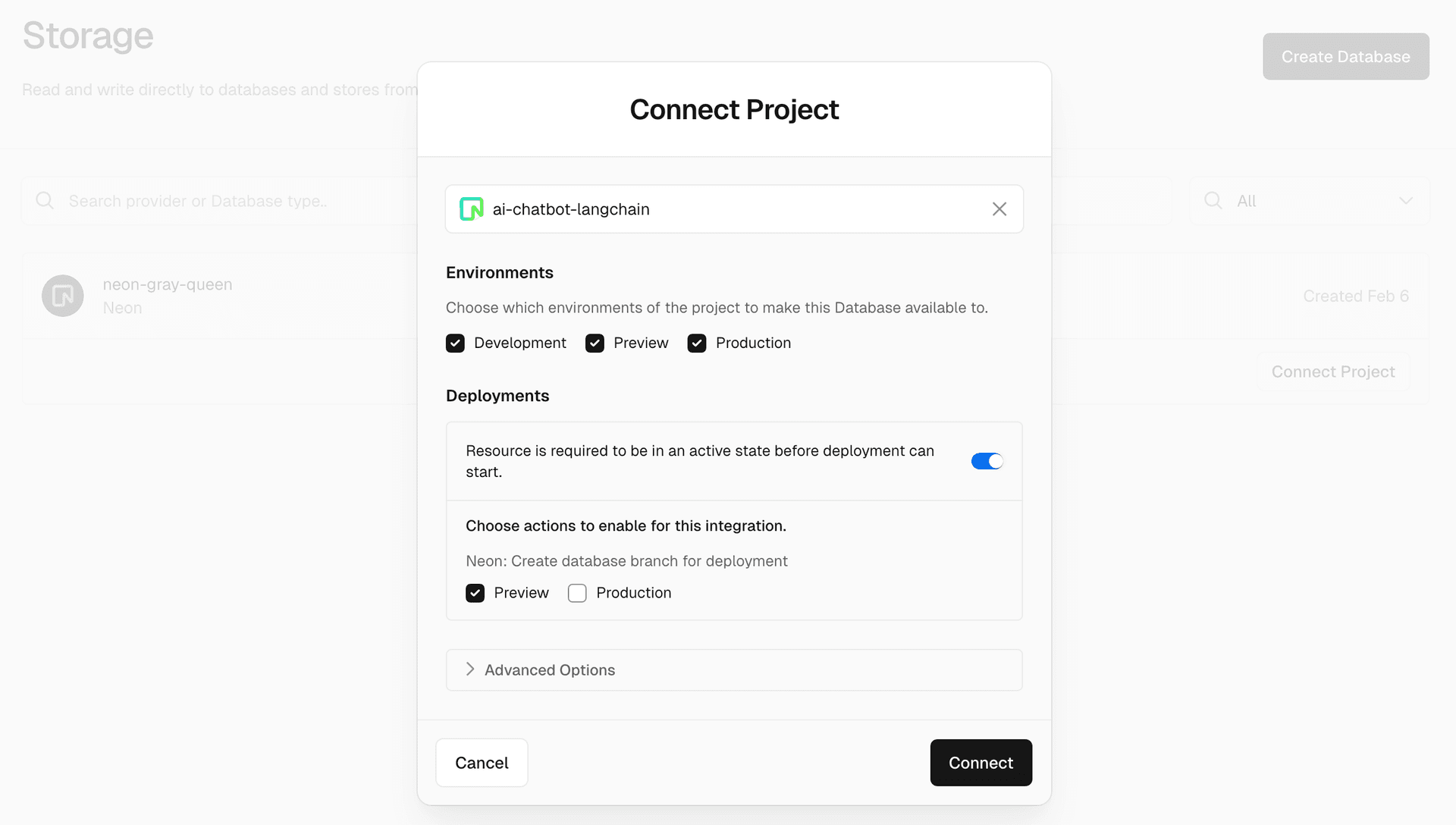
<your database>→ Connect Project choose the Vercel project and the environments that should receive database variables (Development, Preview, Production).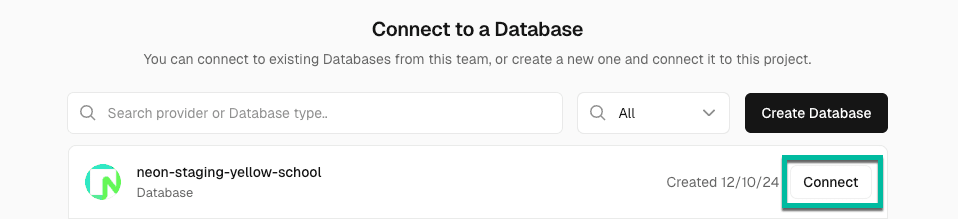
-
(Optional) Under Advanced Options → Deployments Configuration enable Preview to turn on Preview Branching (see next section).
-
Click Connect.
Environment variable prefix
PRIMARY_.Enable automated preview branching (recommended)
Preview branching creates an isolated Neon branch (copy-on-write) for every Vercel Preview Deployment so database schema changes can be tested safely.
Neon Auth support for preview deployments
If you've enabled Neon Auth on your production branch, it's automatically provisioned on preview branches too. Preview deployments receive NEON_AUTH_BASE_URL and VITE_NEON_AUTH_URL environment variables, letting you test authentication in isolated environments. Auth data branches with your database, so each preview has its own independent user profiles and sessions.
To enable:
- While connecting the project (step above) toggle Required → Preview.
- Make sure Resource must be active before deployment is also on. This allows Vercel to wait for the branch to be ready.
Once enabled, the flow looks like this:
-
Developer pushes to feature branch → Vercel kicks off Preview Deployment.
-
Vercel sends a webhook to Neon → Neon creates branch
preview/<git-branch>. -
Environment variables for the branch connection are injected via webhook at deployment time, overriding preview environment variables for this deployment only (cannot be accessed or viewed in your Vercel project's environment variable settings).
-
(Optional) Run migrations in build step so schema matches code.
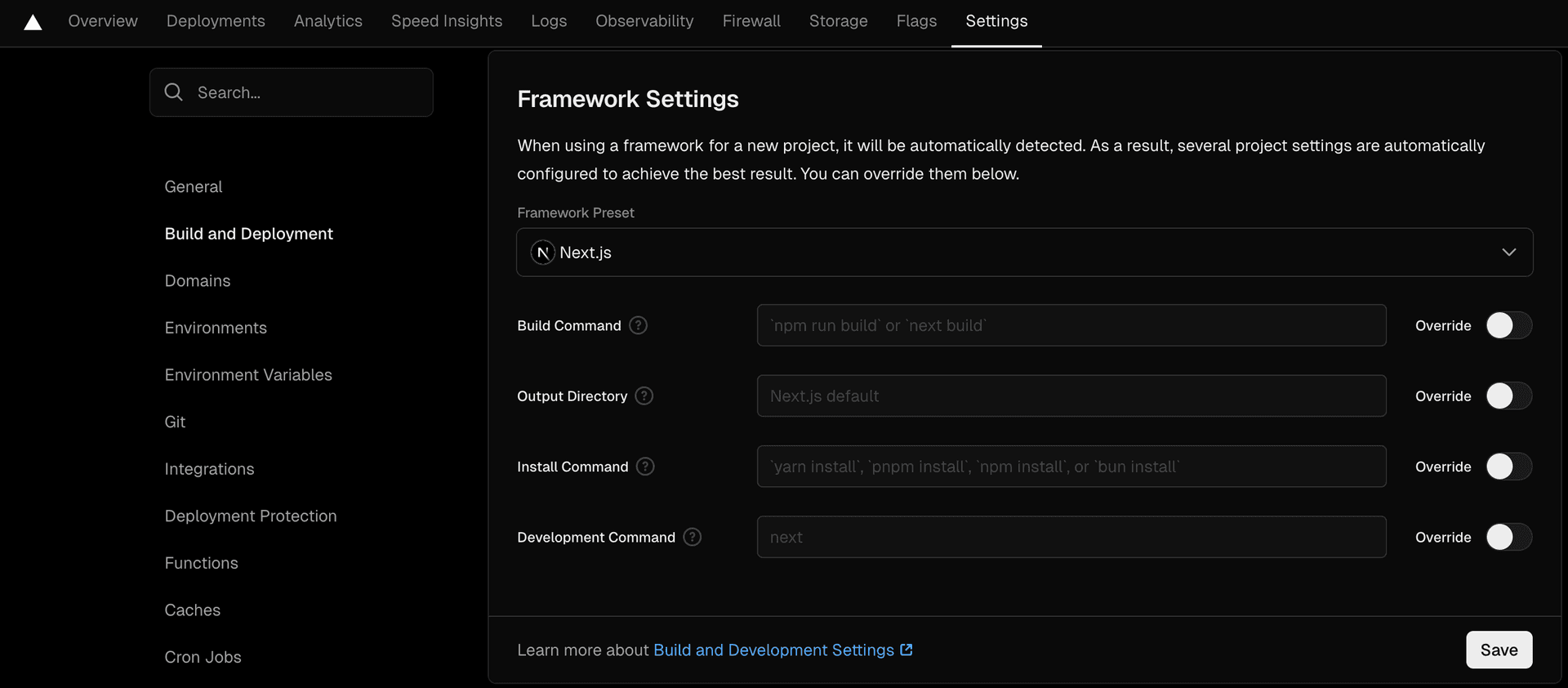
To apply schema changes automatically, add migration commands to your Vercel build configuration:
-
Go to Vercel Dashboard → Settings → Build and Deployment Settings
-
Enable Override and add your build commands, including migrations, for example:
npx prisma migrate deploy && npm run build
This ensures schema changes in your commits are applied to each preview deployment's database branch.
-
Test the setup
To verify preview branching works:
- Create a local branch:
git checkout -b test-feature - Make any change and commit:
git commit -a -m "Test change" - Push:
git push - Check Vercel deployments and Neon Console branches to confirm the preview branch was created
Automatic branch cleanup
Preview branches are automatically deleted when their corresponding Vercel deployments are deleted. This keeps your Neon project organized and reduces storage usage.
How it works:
-
Each Git branch can have multiple Vercel deployments, all using the same Neon branch.
-
When the last deployment for a Git branch is deleted (manually or via Vercel's deployment retention policy), Neon automatically deletes the corresponding database branch.
-
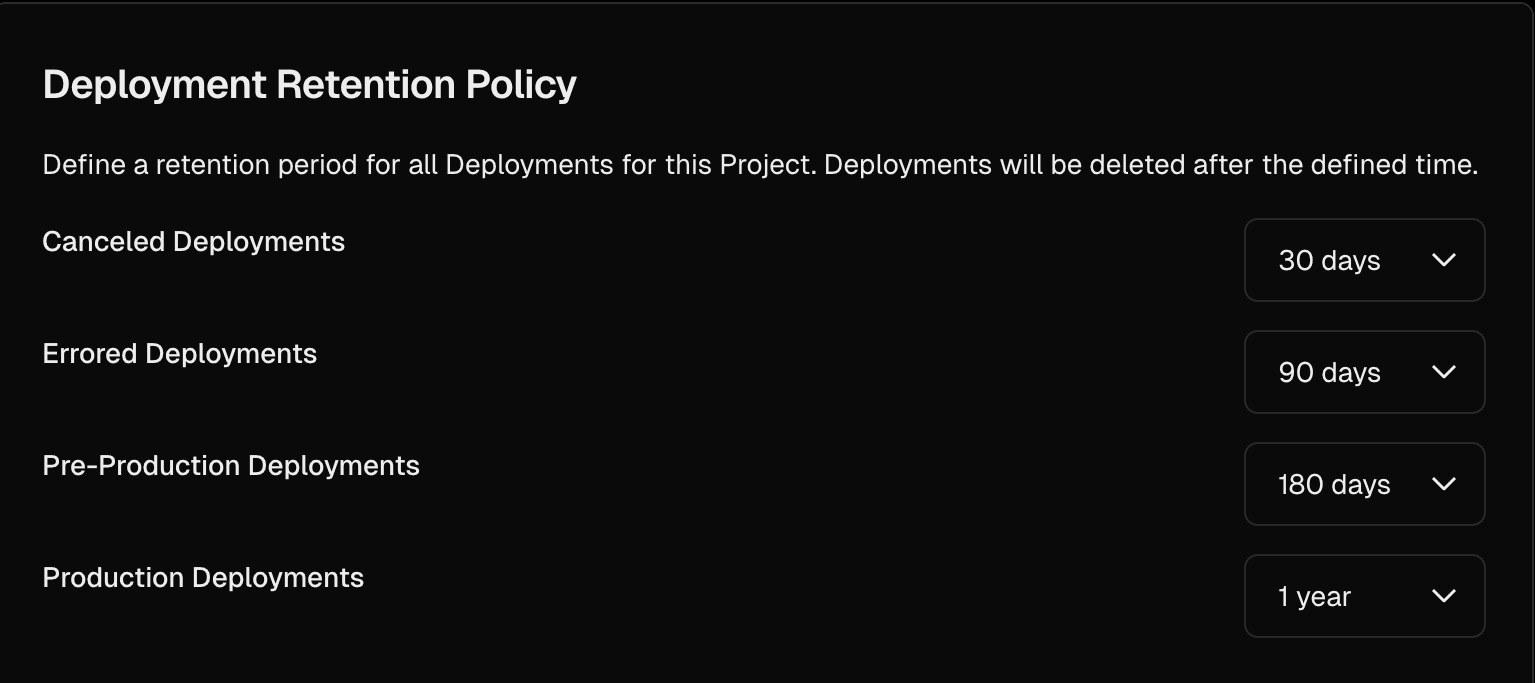
Cleanup happens when deployments are deleted, which you can configure using Vercel's retention policy settings. By default, Pre-Production Deployments (preview environments) are retained for 180 days:
note
This deployment-based cleanup differs from the Neon-Managed Integration, which deletes branches when Git branches are deleted.
Managing & billing
Because your database is managed by Vercel, you can only perform these actions in the Vercel dashboard:
- Change plan, billing tier, or scale settings (compute size, autoscaling, scale-to-zero)
- View or modify database configuration via Storage → Settings → Change Configuration
- Monitor usage via Storage → Usage (also available in Neon Console)
- Create additional databases (each becomes a new Neon project)
- Rename or delete a database (deleting removes the underlying Neon project permanently)
- Manage members / collaborators (handled through Vercel "Members", not the Neon Console) - (see FAQ for details)
- Delete the Neon organization (only happens automatically if you uninstall the integration)
- Update connection-string environment variables (prefix changes, etc.)
Everything else (querying data, branching, monitoring usage) works exactly the same in the Neon Console.
Team member synchronization
Team membership changes in Vercel automatically sync to your Neon organization:
- Initial access: Team members must click Open in Neon from the Vercel integration page and complete authentication before they appear in the Neon organization. This one-time step links their Vercel identity to Neon.
- Role changes: When a team member's role changes in Vercel, their Neon role updates based on Vercel's JWT token mapping (see FAQ for details). Most Vercel roles (Owner, Admin, Member) map to 'Admin' in Neon, while read-only roles (Viewer, Billing) map to 'Member' in Neon.
- Removals: When a user is removed from your Vercel team, they're automatically removed from the associated Neon organization.
This ensures both platforms stay aligned for security and access control.
Project transfers between teams
When you transfer a Vercel project to another team, the linked Neon project automatically moves to the new team's Neon organization:
- The linked Neon project moves from the old organization to the new one.
- Environment variables and settings transfer with it.
- If the destination's plan doesn't support the project's requirements (autoscaling limits, point-in-time restore window, etc.), you'll be prompted to upgrade.
This eliminates the need to manually reconfigure integrations when reorganizing projects.
Common operations
Add another database (project)
- Go to Integrations → Neon Postgres → Manage → More Products → Install
- Select region, scale settings, and plan
- Specify a Database Name and click Create
Change compute / scale settings
Storage → Settings → Change Configuration lets you resize compute, adjust scale-to-zero, or switch Neon plan tiers. Changes apply to all databases in the installation.
important
Changing your plan affects all databases in this integration, not just the current one.
Delete the database
Deleting from Vercel permanently removes the Neon project and all data. This cannot be undone. To delete:
- Vercel Dashboard → Storage → Settings
- Select your database
- Find Delete Database section and confirm
Disconnect a project from database
To disconnect a Vercel project without deleting the database:
- Go to Storage →
<your database>→ Projects - Select your project and choose Remove Project Connection
This removes database environment variables from your Vercel project but keeps the database intact. Previously created preview branches remain but new ones won't be created.
Manage branches created by the integration
Preview branches are automatically deleted when their deployments expire, but you can also manually delete branches via:
- Neon Console - Individual or bulk deletion
- Neon CLI - Command line management
- Neon API - Programmatic cleanup
Unused branches are archived
Branches you don't delete are eventually archived, consuming archive storage space. See Branch archiving.
Environment variables set by the integration
| Variable | Purpose |
|---|---|
DATABASE_URL | Pooled connection string (PgBouncer) |
DATABASE_URL_UNPOOLED | Direct connection string |
PGHOST, PGHOST_UNPOOLED, PGUSER, PGDATABASE, PGPASSWORD | Raw pieces to build custom strings |
POSTGRES_* (legacy) | Provided for backwards compatibility with Vercel Postgres templates |
NEON_AUTH_BASE_URL, VITE_NEON_AUTH_URL | Neon Auth endpoints (when enabled on production branch) |
Limitations
- You cannot use this integration with the Neon-Managed integration in the same Vercel project
- Neon CLI access: Requires API key authentication (the
neon authcommand won't work since the account is Vercel-managed) - Cannot install if you currently use Vercel Postgres (deprecated) - contact Vercel about transitioning
- Preview deployment environment variables: Branch-specific connection variables cannot be accessed or viewed in your Vercel project's environment variable settings (they're injected at deployment time only and not stored to avoid manual cleanup when branches are deleted)
Frequently Asked Questions (FAQ)
Why can't I see Vercel team members in the Neon Console?
Users added to your Vercel team aren't automatically visible in the Neon organization. Team members only appear in Neon when they:
- Click the Open in Neon button from the Vercel integration page
- Complete the authentication flow
Why do Vercel team members with 'Member' role have the 'Admin' role in Neon?
This occurs due to how Vercel's JWT tokens map roles to the integration. According to Vercel's documentation, the JWT token's user_role claim doesn't directly map Vercel team roles:
- ADMIN role in JWT: Granted to users capable of installing integrations (includes Vercel Owner, Admin, and Member roles) → maps to Admin in Neon.
- USER role in JWT: Only granted to users with read-only Vercel roles (includes Billing and Viewer roles) → maps to Member in Neon.
As a result, most active Vercel team members receive Admin access in the Neon organization. This is expected behavior and ensures team members can fully manage database resources.
Need help?
Join our Discord Server to ask questions or see what others are doing with Neon. For paid plan support options, see Support.